In short
- Deleting node_modules is safe as long as you keep package.json and the lockfile; npm ci or pnpm install brings the exact same versions back.
- find with -prune lists every node_modules folder in your home folder with its size, without descending into nested ones.
- npx npkill lets you browse node_modules folders and delete them interactively, but it deletes immediately, without the Trash.
- With pnpm, files in node_modules are clones or hard links of a shared store, so deleting them frees little until you run pnpm store prune.
- Build folders such as .next, .turbo, .nuxt, .svelte-kit and .parcel-cache are rebuilt automatically and are safe to remove too.
How to find and clean node_modules folders on a Mac
- List node_modules folders with their sizes. Run a find command over your home folder that skips ~/Library and the Trash, stops at each top-level node_modules and passes the results to du -sh.
- Pick projects you are not working on. Check each project has package.json and a lockfile such as package-lock.json, pnpm-lock.yaml, yarn.lock or bun.lock. Keep those files.
- Delete their node_modules folders. Move each node_modules folder to the Trash in Finder, or delete them interactively with npx npkill, which removes them permanently.
- Clear the package manager caches. Run npm cache clean --force, pnpm store prune, yarn cache clean or bun pm cache rm for the package managers you use.
- Reinstall when you return to a project. Run npm ci, pnpm install, yarn install or bun install in the project folder to restore node_modules from the lockfile.
A node_modules folder holds the dependencies installed for one JavaScript or TypeScript project, and a typical one is a few hundred megabytes. With dozens of old projects, they easily add up to tens of gigabytes. They are safe to delete as long as you keep package.json and the lockfile: your package manager reinstalls the same versions when you return to the project.
Find every node_modules folder and its size
This command searches your home folder, skips ~/Library and the Trash, and prints each node_modules folder with its size, largest last:
find ~ \( -path "$HOME/Library" -o -path "$HOME/.Trash" \) -prune -o -type d -name node_modules -prune -print0 2>/dev/null | xargs -0 du -sh 2>/dev/null | sort -h
How it works: the first -prune skips the two excluded folders, -type d -name node_modules matches the folders, and the second -prune stops find from descending into them, so nested node_modules are counted once, inside their parent. du -sh measures each one and sort -h orders the list. It only reads. On a large home folder it can take a few minutes, and Terminal may ask for access to Documents, Desktop or Downloads.
Ignore results inside tool folders such as ~/.nvm, ~/.vscode or ~/.cursor. Those belong to installed tools and editor extensions, not to your projects.
If your projects use pnpm, the sizes shown are larger than what you would get back. The reason is explained further down.
Delete the ones you don’t need
Before deleting, open the project folder and check that it has a lockfile: package-lock.json (npm), pnpm-lock.yaml (pnpm), yarn.lock (Yarn) or bun.lock / bun.lockb (Bun). Keep it, and keep package.json.
The safest way to delete is to drag node_modules to the Trash in Finder. You can still change your mind until you empty the Trash. With many small files, moving to the Trash takes a moment.
From Terminal, inside one project folder:
cd ~/Projects/old-app
rm -rf node_modules
rm -rf deletes permanently, without the Trash. Check the folder you are in with pwd first, and never run it with a wildcard or an empty variable.
npkill: an interactive alternative
npkill lists node_modules folders with their sizes and lets you delete them one keystroke at a time:
npx npkill -d ~/Projects
-d sets where the search starts; without it, npkill starts in the current folder. Move with the arrow keys and press Space or Del to delete the selected folder. npkill deletes immediately, without the Trash. It marks with ⚠️ folders that apps need to run, which you should leave alone. --dry-run simulates deletion if you want to try it first.
Reinstall when you return to a project
Use the command that installs exactly what the lockfile says:
| Package manager | Lockfile | Reinstall |
|---|---|---|
| npm | package-lock.json |
npm ci |
| pnpm | pnpm-lock.yaml |
pnpm install --frozen-lockfile |
| Yarn (Berry) | yarn.lock |
yarn install --immutable |
| Yarn Classic | yarn.lock |
yarn install --frozen-lockfile |
| Bun | bun.lock |
bun install --frozen-lockfile |
npm ci requires a lockfile, removes any existing node_modules first and never changes package.json or the lockfile. A plain npm install also works but may update the lockfile.
Other folders that rebuild themselves
Frameworks and build tools keep caches and outputs next to node_modules. These are safe to delete in projects you are not running; the next build or dev server recreates them.
| Folder | Created by |
|---|---|
.next |
Next.js |
.nuxt |
Nuxt |
.svelte-kit |
SvelteKit |
.turbo |
Turborepo |
.parcel-cache |
Parcel |
.angular |
Angular CLI |
dist and build are usually build output too, but the names are generic. Some projects commit files there or use them for something else, so look inside before deleting.
To list the framework caches in a projects folder:
find ~/Projects -type d \( -name .next -o -name .nuxt -o -name .svelte-kit -o -name .turbo -o -name .parcel-cache \) -prune -print0 | xargs -0 du -sh | sort -h
Clear the global package caches
Each package manager also keeps a download cache shared by all projects. Clearing it is permanent but harmless: packages download again when needed.
npm cache clean --force
pnpm store prune
yarn cache clean
bun pm cache rm
- npm keeps its cache in
~/.npm/_cacache. The npm cache docs explain whycleanneeds--forceand note thatnpm cache verifygarbage-collects without emptying everything. Packages fetched bynpxsit in~/.npm/_npx. - pnpm keeps its store in
~/Library/pnpm/storeon macOS (pnpm store pathshows yours).pnpm store pruneremoves only packages no project references, and the pnpm docs suggest running it occasionally rather than constantly. - Yarn Classic caches in
~/Library/Caches/Yarn. For Yarn Berry,yarn cache clean --mirrorempties the global cache in~/.yarn/berry/cache. - Bun caches in
~/.bun/install/cache;bun pm cache rmempties it.
Old Node.js versions installed with nvm also add up in ~/.nvm/versions/node; nvm uninstall <version> removes one you no longer need.
Why pnpm frees less than du says
npm and Yarn Classic copy every package into each project’s node_modules. pnpm stores each package once, in a content-addressable store, and links its files into every project that uses it. On macOS, pnpm’s default packageImportMethod tries APFS clones first, then hard links.
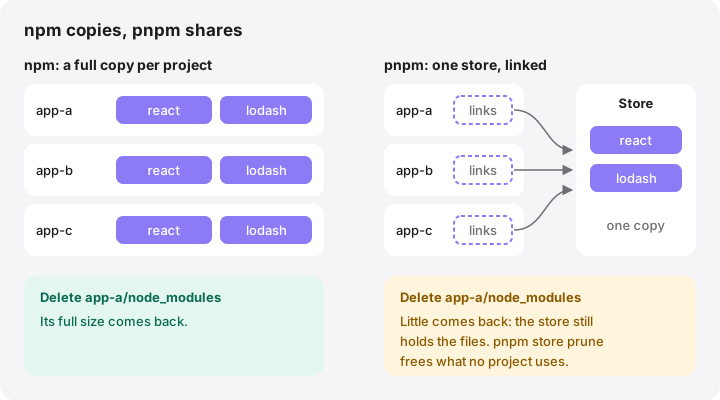
Either way, the bytes are shared. du still counts the full size in each project, so deleting a pnpm project’s node_modules usually frees much less than it reported. The space comes back when pnpm store prune removes packages that no remaining project uses. The store has to be on the same disk as the project for this to work; projects on an external drive get their own store there.
How MoreRoom helps
MoreRoom’s free version finds node_modules folders in projects that have a lockfile and have not been touched for 30 days, plus framework caches such as .next and .turbo, and marks them “Safe to remove”. It skips ~/Library and tool folders like ~/.nvm and ~/.vscode. You move items to the Trash one at a time, with Undo. For the npm cache and the pnpm store, MoreRoom runs npm cache clean --force and pnpm store prune; those commands are permanent and labelled as such.
MoreRoom Pro adds Project hibernation: inactive projects drop rebuildable folders such as node_modules and build output, and wake again in one click when you return. Pro also includes the Collector and Goal mode.
Frequently asked questions
Is it safe to delete node_modules?
Yes. It contains only installed dependencies, which your package manager can install again from package.json and the lockfile. Delete it only for projects you are not currently running, and keep the lockfile.
Should I delete package-lock.json as well?
No. The lockfile records the exact versions that worked. Keep it so npm ci, pnpm install or yarn install can recreate the same node_modules later.
Why does deleting node_modules in a pnpm project free so little space?
pnpm keeps one copy of each package in a shared store and clones or hard-links those files into every project. Deleting a project’s node_modules removes only the links; pnpm store prune then deletes packages no project uses.
Is npm cache clean --force safe?
Yes. It empties npm’s download cache in ~/.npm/_cacache, and npm downloads packages again when needed. npm’s documentation notes that clearing the cache is only useful for reclaiming disk space.
Does npkill move folders to the Trash?
No. npkill deletes the selected folders immediately. Use its --dry-run option to rehearse, and the Finder if you want the Trash as a safety net.