In short
- With Time Machine set up, macOS takes a local snapshot of your startup disk about every hour and keeps each one for 24 hours.
- Snapshots store only what changed, but they keep deleted or rewritten data until they expire, which is how they can grow to many gigabytes.
- Apple counts snapshot space as available storage and removes snapshots automatically when space is needed.
- List them with tmutil listlocalsnapshots / or Disk Utility’s View › Show APFS Snapshots.
- Deleting them is rarely necessary and removes restore points; keep the most recent one if you can.
How to check and remove Time Machine local snapshots
- List local snapshots. In Terminal, run tmutil listlocalsnapshots /. Each line such as com.apple.TimeMachine.2026-10-17-093012.local is one snapshot.
- See how much space they hold. Open Disk Utility, choose View › Show All Devices and View › Show APFS Snapshots, then select your Data volume and check the Private Size column.
- Let Time Machine clean up. In System Settings › General › Time Machine, click Options and set Backup Frequency to Manually. Wait a few minutes, then set it back.
- Or thin snapshots from Terminal. Run tmutil thinlocalsnapshots / followed by a size in bytes and an urgency from 1 to 4 to let Time Machine remove snapshots until that much space is reclaimed.
- Delete a specific snapshot if you must. Run sudo tmutil deletelocalsnapshots with the snapshot date, for example 2026-10-17-093012, or select it in Disk Utility and click Delete Snapshot.
Time Machine local snapshots are read-only, point-in-time copies of your startup disk that macOS keeps on the Mac itself. When Time Machine is set up, macOS takes one about every hour and keeps it for 24 hours, so you can restore recent files even when the backup disk is not connected. They usually use little space, but they keep deleted or rewritten data until they expire, which can add up to many gigabytes. macOS removes them automatically when space is needed, so deleting them yourself is rarely necessary.
What is a local snapshot?
A snapshot is a feature of APFS, the file system on every modern Mac. It records which data blocks made up the volume at one moment. Taking a snapshot copies nothing; it simply stops those blocks from being reused while the snapshot exists.
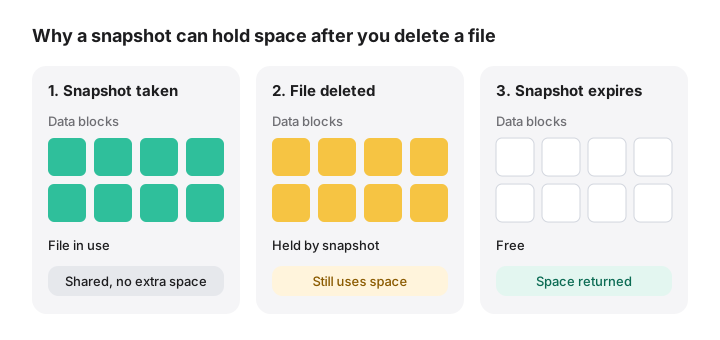
That is why a new snapshot takes almost no space, and why it grows as you work. If you delete a 30 GB virtual machine after a snapshot was taken, those 30 GB stay in use until the snapshot goes. The glossary entries for APFS snapshots and local snapshots give short definitions.
When does macOS create them?
According to Apple’s About Time Machine local snapshots, as of October 2026:
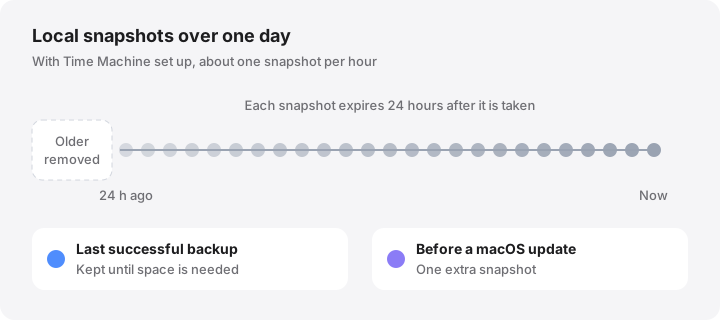
- Hourly, with Time Machine set up. Time Machine saves one snapshot of your startup disk about every hour and keeps it for 24 hours.
- Your last successful backup. It keeps an extra snapshot of the last successful Time Machine backup until space is needed.
- Before a macOS update. Since macOS High Sierra, macOS saves another snapshot before installing an update.
Apple adds that Time Machine stores snapshots only on disks with plenty of free space, and deletes them as they age or when space is needed.
Other apps can create snapshots too. Backup tools such as Carbon Copy Cloner can keep their own snapshots on your Mac’s volumes, following a retention policy set in that app. Such a policy can keep daily or weekly snapshots far longer than 24 hours. Those are managed in the app that made them, not by Time Machine. You can also create a Time Machine snapshot by hand with tmutil localsnapshot.
How much space do they use?
Typically a few gigabytes, and often less. They grow large when you delete or rewrite big files during the 24-hour window: video projects, virtual machine and Docker disks, large downloads or a big app update.
Apple says your Mac counts the space used by snapshots as available storage, and that snapshots do not take up space needed for downloads, copying files or installing software. In practice, Finder includes it in Available as purgeable space, Terminal’s df does not, and Storage settings often reflects it in System Data.
How to see your local snapshots
In Terminal
tmutil listlocalsnapshots /
This lists Time Machine’s local snapshots for the startup disk, with names such as com.apple.TimeMachine.2026-10-17-093012.local. To see only the dates, run tmutil listlocalsnapshotdates /. Both commands only read.
To see every snapshot on the Data volume, including those made by other apps, run:
diskutil apfs listSnapshots /System/Volumes/Data
If you run it on / instead, you will also see a snapshot named com.apple.os.update-…. That is the sealed system volume your Mac starts up from. It is normal and must not be removed.
In Disk Utility
- Open Disk Utility and choose View › Show All Devices.
- Choose View › Show APFS Snapshots.
- Select your Data volume, usually Macintosh HD - Data. Its snapshots appear in a table at the bottom of the window.
The Private Size column estimates how much space only that snapshot holds. Apple describes this view in View APFS snapshots in Disk Utility.
How to thin or delete them
Start with the gentlest option.
1. Let Time Machine do it. This is the method Apple documents. On macOS 13 Ventura and later, open System Settings › General › Time Machine, click Options, choose Manually from Backup Frequency and click Done. Wait a few minutes for the snapshots to be deleted, then set the frequency back. Time Machine remembers your backup disks.
2. Thin snapshots to reclaim a specific amount.
tmutil thinlocalsnapshots / 20000000000 4
This asks Time Machine to remove snapshots until it reclaims about 20 GB, with urgency 4 on a scale of 1 to 4. Time Machine chooses which snapshots to remove.
3. Delete one snapshot by date.
sudo tmutil deletelocalsnapshots 2026-10-17-093012
Use a date from tmutil listlocalsnapshotdates /. The command asks for your administrator password. On recent versions you can pass a mount point such as / instead of a date to delete all Time Machine local snapshots on that volume; check man tmutil on your Mac first.
4. Use Disk Utility. With snapshots shown as above, select one or more and click Delete Snapshot.
All of these are permanent: there is no Undo, and a deleted snapshot cannot be restored. Your backups on the Time Machine disk are not affected. For snapshots made by another app, use that app’s settings, or they may simply be recreated.
Why you usually do not need to delete them
- They expire on their own within 24 hours.
- macOS removes them when an app, download or update needs the space.
- They are your safety net for recent changes when the backup disk is away.
- The latest snapshot helps Time Machine back up only what changed. Deleting it can make the next backup take longer.
Deleting snapshots makes sense when a tool checks raw free space and refuses to run, when you have just deleted something very large and need the space at once, or when another backup app is keeping more snapshots than you want. In the last case, change that app’s retention settings rather than deleting by hand.
If space does not come back after deleting files, snapshots are only one of several causes; see why deleted files don’t free space.
How MoreRoom helps
MoreRoom’s free version lists local snapshots as part of System Data, explained, alongside swap, sleep image, Preboot and Recovery, and shows which space macOS will purge on its own. It explains why Finder and df disagree, and Storage Weather tracks your free space over 30 days. MoreRoom does not delete APFS or Time Machine snapshots. When you decide to remove them, use Time Machine settings, tmutil or Disk Utility as described above.
Frequently asked questions
Is it safe to delete Time Machine local snapshots?
It does not harm macOS or your backups on the backup disk, but you lose the restore points those snapshots provide. Deleting the most recent one can make the next backup take longer.
How long does macOS keep local snapshots?
Time Machine keeps hourly local snapshots for 24 hours, plus a snapshot of your last successful backup until space is needed. macOS removes them sooner if it needs the space.
Do local snapshots exist if I do not use Time Machine?
Time Machine creates hourly local snapshots only when it is set up with automatic backups. Other backup apps can create their own snapshots, and macOS also takes one before installing an update.
Why do snapshots take so much space?
A snapshot keeps every block that existed when it was taken. If you then delete or rewrite large files, such as videos or virtual machine disks, their old data stays in the snapshot until it expires.
Where do snapshots appear in Storage settings?
They have no category of their own. Apple counts their space as available, but in practice it is often reflected in System Data until the snapshots expire.