In short
- Dragging an app to the Trash removes the app itself but leaves its settings, caches and data in your Library folder, often far more than the app’s own size.
- If an app comes with its own uninstaller, as Adobe, Microsoft and Docker apps do, use it first: it also removes helpers, login items and background services.
- Leftovers sit in folders such as ~/Library/Application Support, Caches, Containers, Group Containers and Preferences, usually named after the app or its bundle ID.
- Only remove leftovers that clearly belong to the app you uninstalled, move them to the Trash rather than deleting them, and never touch Apple’s own folders.
- To fix a misbehaving app you often don’t need to uninstall it; resetting its preferences or using its built-in reset is enough.
How to uninstall a Mac app and its leftovers
- Quit the app and look for an uninstaller. Quit the app. Check its folder in Applications, its menus and its website for an Uninstall option, and use it if there is one.
- Note the app’s bundle ID. While the app is still in Applications, run osascript -e 'id of app "Example"' in Terminal to get a name such as com.example.App. Leftovers are often named after it.
- Move the app to the Trash. In Finder, open Applications and drag the app to the Trash, or select it and press Command-Delete. Enter an administrator password if asked.
- Look for leftovers in your Library. In Finder press Command-Shift-G, go to ~/Library and check Application Support, Caches, Containers, Group Containers, Preferences, Saved Application State, HTTPStorages, WebKit and LaunchAgents for that name.
- Check system-wide locations and login items. Check /Library/LaunchAgents, /Library/LaunchDaemons and /Library/PrivilegedHelperTools, and turn off the app’s entries in System Settings › General › Login Items & Extensions.
- Empty the Trash when you are sure. Use the app’s replacement or open a few documents first. Once everything works, empty the Trash to free the space.
Dragging an app to the Trash removes the app, but not the data it created. Settings, caches, downloaded content and background helpers stay in your Library folders, sometimes taking more space than the app itself. To uninstall completely: use the app’s own uninstaller if it has one, otherwise move the app to the Trash and then remove the leftovers that clearly belong to it.
Step one: the app itself
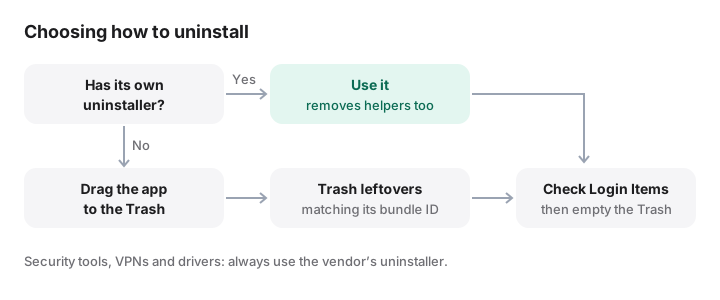
Apps from the Mac App Store. In Finder, open Applications and drag the app to the Trash, or select it and press Command-Delete. On macOS Sequoia and earlier you can also open Launchpad, hold Option until icons jiggle and click the delete button. macOS Tahoe replaced Launchpad with Apps, which does not offer this, so use Finder.
Apps with their own uninstaller. Apple’s Delete or uninstall apps on Mac recommends checking for one first, because it also removes login items, extensions and other data stored elsewhere. Common examples:
- Adobe apps: uninstall from the Creative Cloud desktop app.
- Microsoft 365: follow Uninstall Office for Mac. It includes removing the
UBF8T346G9.*folders in Group Containers; back up Outlook data first. - Docker Desktop: choose Troubleshoot › Uninstall in the dashboard, or run
/Applications/Docker.app/Contents/MacOS/uninstall, then trash the app. This deletes your containers, images and volumes. See Docker’s instructions. - Security tools, VPNs, drivers and audio plug-ins usually install system extensions; always use the vendor’s uninstaller.
Everything else. Note its bundle ID (see below), quit the app and drag it to the Trash. Leave the Trash unemptied until you have dealt with the leftovers.
You can also delete apps from System Settings › General › Storage: click the info button next to Applications, select an app and click Delete.
Where leftovers live
Apps store data in predictable places, usually in a folder named after the app (“Slack”) or its bundle ID (“com.tinyspeck.slackmacgap”). To find an app’s bundle ID, run this while the app is still in Applications (it only reads):
osascript -e 'id of app "Example"'
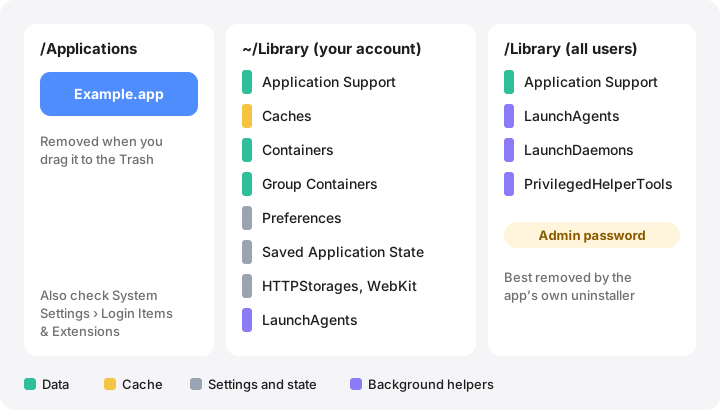
| Location | What it holds | Remove after uninstalling? |
|---|---|---|
~/Library/Application Support/<App> |
Databases, downloads, plug-ins, often the biggest part | Yes, if you don’t want the data back |
~/Library/Caches/<bundle ID> |
Rebuildable cache | Yes |
~/Library/Containers/<bundle ID> |
All data of a sandboxed app (most App Store apps) | Yes, but it may hold your documents |
~/Library/Group Containers/<team ID>.<name> |
Data shared by an app family, such as Office | Only if no related app remains |
~/Library/Preferences/<bundle ID>.plist |
Settings | Yes |
~/Library/Saved Application State/<bundle ID>.savedState |
Window state for Resume | Yes |
~/Library/HTTPStorages/<bundle ID> |
Cookies and web storage | Yes |
~/Library/WebKit/<bundle ID> |
Web content data | Yes |
~/Library/LaunchAgents/<bundle ID>.*.plist |
Background helpers for your account | Yes, then log out and in |
/Library/LaunchAgents, /Library/LaunchDaemons |
Helpers for all users | Yes, needs an admin password |
/Library/PrivilegedHelperTools |
Privileged helper programs | Yes, with its LaunchDaemon |
To search your Library for an app’s name or bundle ID, this lists matches without changing anything:
find ~/Library /Library -maxdepth 3 -iname "*example*" 2>/dev/null
Review every result. A search for a short name like “note” matches many unrelated items. Move what you are sure about to the Trash in Finder; it is reversible until you empty the Trash.
Login items and background services
Apps that run in the background register login items or launch agents. On macOS Sequoia and later, open System Settings › General › Login Items & Extensions (just Login Items on Ventura and Sonoma). Remove the app from Open at Login and turn off its entries under Allow in the Background. An entry that remains after you remove the app usually points to a leftover plist in one of the LaunchAgents or LaunchDaemons folders above.
Apps installed with a .pkg installer
Packages leave a receipt that lists what they installed. These commands only read:
pkgutil --pkgs | grep -i example            # find the package ID
pkgutil --pkg-info com.example.pkg          # where it installed
pkgutil --files com.example.pkg             # every path it installed
Paths from --files are relative to the location shown by --pkg-info, usually /. Be careful: the list includes shared directories such as Library and usr/local/bin that other software also uses. Remove only the files that clearly belong to the app, never whole shared folders, and never anything under /System or /usr outside /usr/local. pkgutil --forget only deletes the receipt; it does not uninstall anything.
What not to delete
- Anything named
com.apple.*, and the folders for Mail, Messages, Photos, Safari, Keychains and Accounts. ~/Library/Mobile Documentsand~/Library/CloudStorage, which are your cloud drives.- Group Containers still used by another app from the same developer.
- Containers or Application Support folders that hold documents you created, unless you have a copy. Notes, games and editors often keep your work there.
- Anything in
/System. It is protected and is not where apps install.
Reset an app instead of uninstalling it
If an app misbehaves, you may not need to remove it at all. First look for a built-in reset, often in its Help or Settings. Otherwise, quit the app and reset its preferences:
defaults delete com.example.App
This removes the settings stored for that bundle ID through the preferences system, which is safer than trashing the .plist by hand because macOS caches preferences. It cannot be undone, so export first if you might want them back: defaults export com.example.App ~/Desktop/example-prefs.plist. Sandboxed apps keep their preferences inside their container; defaults handles that for you. If that is not enough, trashing the app’s cache folder is the next step, and its Application Support folder the last.
How MoreRoom helps
MoreRoom’s free version uninstalls apps one at a time with their leftovers. It matches the app’s bundle ID in the folders listed above (Application Support, Caches, Containers, Group Containers, Preferences, Saved Application State, HTTPStorages, WebKit, LaunchAgents and more), shows what each item weighs, and lets you untick anything you want to keep. Everything goes to the Trash first, with Undo. Items it finds in the system-wide /Library are shown but left for you to remove with an administrator password. MoreRoom does not remove system extensions or drivers; for security tools, VPNs and drivers, use the vendor’s uninstaller.
Frequently asked questions
Does dragging an app to the Trash uninstall it?
It removes the app, which is enough for most small apps. Its settings, caches and data stay in your Library folder, and some apps leave background helpers that only their own uninstaller removes.
How do I delete an App Store app?
Drag it from Applications to the Trash in Finder. On macOS Sequoia and earlier you can also hold Option in Launchpad and click the delete button; macOS Tahoe replaced Launchpad with Apps, so use Finder there.
Is it safe to delete folders in ~/Library?
Only folders that clearly belong to an app you have removed. Never delete Apple’s folders (names starting with com.apple), Keychains, Mail, Messages or Photos data, and move items to the Trash so you can restore them.
What does pkgutil --forget do?
It deletes macOS’s receipt for an installer package, nothing else. The files that package installed stay where they are, so it does not uninstall anything.
Why can’t I move a folder in ~/Library/Containers to the Trash?
macOS protects app containers. Finder may ask for permission, and Terminal needs Full Disk Access in System Settings › Privacy & Security. Remove the app first, then its container.