In short
- On APFS, Finder’s Duplicate and copies within the same volume create clones that share the original’s data blocks instead of copying them.
- Deleting a clone frees almost nothing while the other copy exists, because the shared blocks are still in use.
- Duplicate finders compare contents, not blocks, so they can report gigabytes of savings that never appear on your disk.
- Confirm real duplicates with a checksum such as shasum -a 256, and keep the copy that apps and libraries actually reference.
- Never remove duplicates from inside a Photos library or an app bundle by hand; use Photos’ own Duplicates album instead.
How to find and remove real duplicate files safely on a Mac
- Look for large candidates first. In Finder choose File › New Smart Folder, add a File Size is greater than 500 MB rule, and sort by name or size to spot likely pairs.
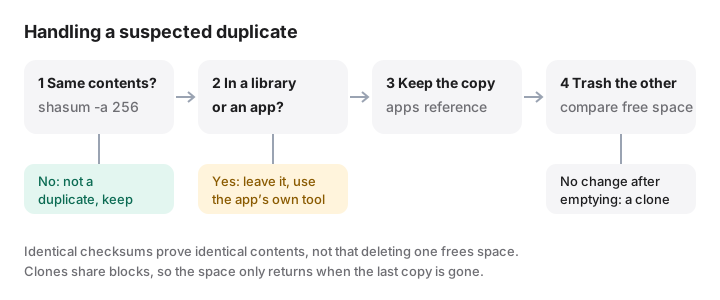
- Confirm the contents are identical. Run shasum -a 256 on both files in Terminal. Identical checksums mean identical contents; different checksums mean they are not duplicates.
- Check whether they are on the same volume. Copies made on the same APFS volume may be clones. Deleting one of them may free little or no space, so check free space before and after.
- Keep the copy that is referenced. Keep the one inside the project, library or folder an app uses. Move the other to the Trash, never files inside packages such as Photos libraries.
- Check the result, then empty the Trash. Note the free space in Disk Utility, empty the Trash, and compare. If nothing changed, the files were clones and deleting them gained nothing.
On APFS, the format of every current Mac’s startup disk, a “duplicate” is often not a duplicate at all. When you choose File › Duplicate (Command-D) in Finder, or copy a file to another folder on the same volume, macOS usually makes a clone: a second file that points at the same data blocks as the first. It uses almost no extra space, so deleting it gives almost nothing back.
How APFS clones work
A clone is a new file whose contents are not copied. Both files point to the same blocks on disk. Only when one of them is changed does APFS write new blocks for the changed parts, a technique called copy-on-write. The unchanged parts stay shared.
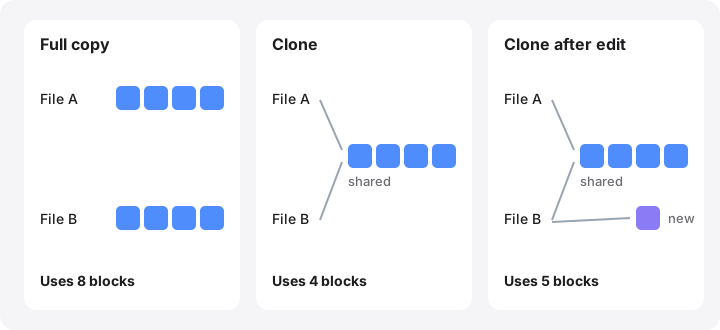
macOS makes clones when:
- You use Duplicate or copy (Option-drag) within the same APFS volume in Finder.
- An app copies files with the system’s standard file-copy calls, which many do.
- You use
cp -cin Terminal. Plaincpwrites a full copy.
cp -c "Big Video.mov" "Big Video copy.mov"   # clone: shares data, almost no new space
cp "Big Video.mov" "Big Video copy.mov"      # full copy: writes all the data again
Copies to another volume, an external drive or a network share are always full copies. As Howard Oakley explains, clones also lose their sharing when they are restored from a Time Machine backup: each comes back as a separate file.
Why deleting a clone frees almost nothing
Space comes back only when the last file that uses a block is deleted, and no local snapshot still holds it. With a pair of clones, deleting one leaves every shared block in use by the other, so you recover a few kilobytes of file-system metadata. We tested it: cloning a 200 MB file reduced free space by about 4 KB, and a plain copy reduced it by 200 MB.
Partially edited clones sit in between. If you cloned a 10 GB video and then trimmed one copy, the blocks that differ belong to one file only; deleting that file frees those blocks and nothing else.
Why duplicate finders can overstate savings
Duplicate finders compare file contents, usually with a checksum. A clone has exactly the same contents as its original, so it is reported as a duplicate, and its full size is added to the “you could save” total. On a Mac with many clones, that total can be gigabytes too high.
The same blind spot explains why some tools disagree with each other. Finder’s Get Info and du add up each file’s size separately, so a folder with three clones of a 1 GB file looks like 3 GB. Your volume’s free space, shown in Disk Utility, is what really changes.
If you have many genuine copies, the better move is often to convert them into clones rather than delete them, so every path still works. That is what tools such as Hyperspace, by John Siracusa, do.
Logical size and allocated size
Every file has two sizes:
- Logical size: how many bytes it contains.
ls -land Finder’s Size show this. - Allocated size: how much disk space it takes. Finder’s “on disk” figure and
dushow this.
They differ for clones (shared blocks), for sparse files such as disk images and virtual machines (unwritten regions take no space), for files compressed by APFS, and for cloud files whose download you removed. See logical vs physical size for more.
ls -lh "Big Video.mov"   # logical size
du -h "Big Video.mov"    # allocated size, counted as if nothing were shared
How to find real duplicates safely
Start with large files. Small duplicates rarely matter. In Finder, choose File › New Smart Folder, click +, set File Size › is greater than › 500 MB (choose Other… in the first menu if File Size is not listed), and switch to List view sorted by Name. Matching names and sizes are your candidates.
Confirm with a checksum. shasum ships with macOS and only reads files:
shasum -a 256 ~/Movies/"Trip.mov" ~/Desktop/"Trip copy.mov"
If the long hexadecimal strings match, the contents are identical. To check a whole folder of large files for matches:
find ~/Movies -type f -size +100M -print0 | xargs -0 shasum -a 256 \
  | awk '{n[$1]++; l[$1]=l[$1] $0 "\n"} END {for (h in n) if (n[h]>1) print l[h]}'
This prints groups of files with the same checksum. It deletes nothing. A matching checksum does not tell you whether the files are clones, so treat the space as “possibly recoverable”.
Use a reputable tool if you prefer. Open-source dupeGuru and well-known commercial apps work fine, provided you review each group, exclude libraries and system folders, and treat their savings figures as an upper limit.
The risk of deleting the “wrong” copy
Identical contents do not mean the copies are interchangeable.
- Photos libraries. Never delete files inside a
.photoslibrarypackage in Finder; the library’s database still expects them and can be damaged. Since macOS Ventura, Photos has a Duplicates album under Utilities that merges duplicates properly. Deleted items wait in Recently Deleted. - Music, Final Cut Pro, Lightroom and similar libraries reference files by path. Removing the “duplicate” that a library points to leaves a missing file.
- App bundles. Many apps ship identical frameworks. Deleting anything inside an
.appbreaks its code signature and can stop it opening. Uninstall the whole app instead; see how to uninstall Mac apps completely. - Projects and code. A file in a project folder is referenced by builds and scripts; the copy on your Desktop is usually the one to remove.
- Backups. A deliberate second copy on another drive is a backup, not a duplicate.
When in doubt, keep the copy that lives where an app expects it, and move the other to the Trash so you can put it back.
How MoreRoom helps
MoreRoom’s Free Without Deleting finds identical files of 1 MB or more, for free. With Pro, it turns the extra copies into APFS clones, like Finder’s Duplicate: each copy stays where it is, with its own name, dates and tags, but the data is stored once, and nothing is deleted. Every file is checked again right before, and editing a copy later simply gives it its own space again. MoreRoom also measures your disk honestly: when it scans, cloned data is counted once, so its totals and treemap are not inflated by clones the way per-file sizes are. Its rules also flag common copies that are safe to review, such as old disk images left in Downloads. Anything you remove goes to the Trash first, with Undo. For Photos duplicates, use Photos’ own Duplicates album.
Frequently asked questions
Does duplicating a file in Finder double the space it uses?
Not on APFS. Finder’s Duplicate (Command-D) and copies within the same APFS volume create clones that share the same data, so the copy uses almost no extra space until one of them is edited.
How can I tell whether a file is a clone?
Finder does not show it, and both copies report their full size. The practical test is to note the free space, delete one copy, empty the Trash and see whether free space grows.
Why did deleting duplicates not free any space?
The files were probably clones or hard links sharing the same data. Space only comes back when the last file using those blocks is deleted.
Is it safe to use a duplicate finder?
Reputable ones are, if you review every match. Exclude Photos and Music libraries, app bundles and system folders, and remember that their savings estimates can overcount clones.
Does MoreRoom find duplicate files?
Yes, since version 0.2.1. Free Without Deleting finds identical files of 1 MB or more for free; with Pro, it turns the extra copies into APFS clones, so each file stays in place but the data is stored once. Nothing is deleted.