In short
- Apple’s current support pages don’t give a free-space figure for macOS 27 or 26; Software Update checks the space itself and tells you if there isn’t enough.
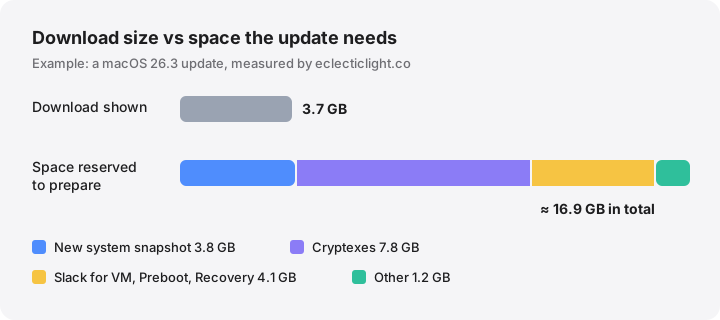
- The download is compressed. Preparing even a minor update has been measured at around 17 GB of working space for a download of under 4 GB.
- As a rule of thumb, keep at least 20 GB free for a minor update and 40 GB or more for a major upgrade such as Tahoe to Golden Gate.
- macOS 27 Golden Gate runs only on Apple silicon Macs. Intel Macs stay on macOS 26 Tahoe.
- The quickest safe wins are emptying the Trash, removing old macOS installers and iPhone backups, and freeing local copies of files already in iCloud.
How to make enough room for a macOS update
- Check real free space. Open Disk Utility, select your startup volume and read the Free figure, or run df -h / in Terminal. Storage settings may include purgeable space that isn’t free yet.
- Compare with what the update needs. Aim for at least 20 GB free for a minor update and 40 GB or more for a major upgrade. If Software Update says it needs more, trust that figure.
- Empty the Trash and clear Downloads. Files in the Trash still use space. Remove old disk images and installer packages from Downloads once the apps are installed.
- Remove old macOS installers and device backups. Delete any Install macOS app from Applications and old iPhone or iPad backups you no longer need from Finder’s Manage Backups list.
- Free local copies of cloud files. In Finder, Control-click large folders in iCloud Drive and choose Remove Download. The files stay in iCloud and download again when opened.
- Restart and try again. A restart releases swap files and lets macOS clear temporary data. If you are still a little short, Apple suggests starting up in safe mode, which clears some system caches.
There is no single number. A minor update such as 27.0 to 27.0.1 typically downloads a few gigabytes but needs several times that in working space, and a major upgrade such as macOS 26 Tahoe to macOS 27 Golden Gate needs more again. As a rule of thumb, keep at least 20 GB free for a minor update and 40 GB or more for a major upgrade. Software Update checks the space itself and tells you if it is not enough.
What Apple officially says (as of October 2026)
Apple’s current pages do not give a free-space figure. How to download and install macOS (published 14 September 2026) lists the versions and says only that Software Update “can also use less storage space” than other install methods. The macOS Tahoe 26 compatibility page lists models but no storage requirement, and neither does Apple’s macOS 27 overview.
Apple used to publish numbers. For macOS Monterey it asked for 26 GB of available storage when upgrading from macOS Sierra or later, and up to 44 GB from earlier versions. Those figures are old, but they show the order of magnitude a major upgrade needs.
One current figure does matter. Apple’s Apple Intelligence page (14 September 2026) says the 27 releases need up to 14 GB of on-device storage on Macs with M3 or later and at least 12 GB of memory, and up to 8 GB on other supported Macs. Those models arrive after the upgrade, on top of the system itself.
macOS 27 Golden Gate is Apple silicon only. It supports MacBook Air, MacBook Pro and Mac mini with Apple silicon (2020 and later), iMac (2021 and later), Mac Studio (2022 and later), Mac Pro with Apple silicon (2023) and MacBook Neo. Intel Macs stay on macOS 26 Tahoe and keep receiving the Tahoe updates Apple releases for them.
Minor updates and major upgrades are different jobs
| Minor update (e.g. 27.0 → 27.0.1) | Major upgrade (e.g. 26 → 27) | |
|---|---|---|
| Typical download | About 1–8 GB | About 10–17 GB |
| Working space macOS needs | Roughly 15–20 GB | Considerably more; plan for 40 GB+ |
| What changes | Security fixes, a new system snapshot | The whole system, firmware, Recovery, new features and models |
| After installing | Temporary files cleared within hours | System often grows; new assets keep downloading |
These are typical ranges, not promises. Since macOS Big Sur, Software Update sends a download built for the exact version you are coming from, so two Macs can see very different sizes for the same update.
Why the installer needs more than the download
The size Software Update shows is the compressed download, not the space the whole process needs. Howard Oakley measured a macOS 26.3 update that showed a 3.68 GB download but reserved about 16.9 GB during preparation: room for the new system snapshot, the cryptexes that hold parts of the system and Safari, temporary slack for the VM, Preboot and Recovery volumes, and a little more.
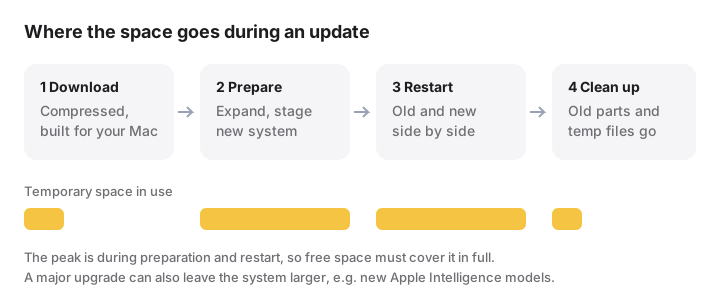
All of this happens while your current system is still in place, so for a while both old and new copies coexist. After the restart the old pieces are removed. In his tracking of the Golden Gate upgrade, used space peaked for about a day, then settled around 30 GB higher than before, mostly because of AI components.
If you use the full Install macOS app from the App Store instead of Software Update, the app itself takes around 13–17 GB in recent versions before it even starts, so you need more space, not less.
The “not enough free space” error
When space is short, Software Update or the installer stops before changing anything and tells you there isn’t enough storage, usually with the amount still needed. The wording varies between versions. A few things to know:
- Purgeable space may not count. Storage settings and Finder can show space that macOS would free later (see purgeable space). Check Disk Utility or run
df -h /for space that is free right now. - Snapshots are not always removed for you. Time Machine keeps local snapshots for about 24 hours. macOS removes them when space gets tight, but not necessarily to make room for an upgrade. See Time Machine local snapshots.
- Freed space can lag. After a big clean-up, wait a minute or restart before retrying.
How to make room fast
Work from the safest and largest items down.
- Empty the Trash. Files you trashed still occupy the disk until you empty it.
- Remove old installers. Any
Install macOS ….appin/Applicationscan go; you can download it again. Check~/Downloadsfor old.dmgand.pkgfiles from apps you already installed. - Delete old iPhone and iPad backups. In Finder, select your device, click Manage Backups, and delete the ones you no longer need. They are often tens of gigabytes.
- Free local copies of cloud files. In iCloud Drive, Dropbox, OneDrive or Google Drive, Control-click a large folder and choose Remove Download (or the provider’s “online-only” option). Only do this for files that have finished uploading. See Remove Download vs Delete.
- Restart. This releases swap files in the VM volume, which can be several gigabytes on a busy Mac.
- If you are still a little short, Apple’s Free up storage space on Mac suggests starting up in safe mode, which clears some system caches and may give the update enough room while it runs.
If you need to thin local snapshots by hand, the first command lists them and the second asks macOS to reclaim up to 40 GB by removing them (the last number is the urgency, 1 to 4). Thinned snapshots are gone for good, but your files and your Time Machine backup disk are not touched:
tmutil listlocalsnapshots /
tmutil thinlocalsnapshots / 40000000000 4
Avoid deleting anything inside /System, /private/var or /Library by hand to make room. The space macOS reserves there comes back on its own after the update, and removing it manually can break the install.
Before you start the upgrade
- Back up first, with Time Machine or another tool, as Apple recommends.
- Plug in a laptop and leave it on power.
- Keep some extra margin. Finishing an upgrade with only a few gigabytes left makes the first days slow, because swap, Spotlight re-indexing and new model downloads all need room. Our guide to how much free space a Mac needs explains why.
You can also estimate your situation with the macOS update space checker.
How MoreRoom helps
MoreRoom’s free version includes a “Ready for the next macOS update?” gauge that compares your free space with what an update typically needs. Its scan shows the items in this guide in one place: old macOS installers, iPhone backups, old downloads, the Trash, and a downloaded update waiting to install (which it labels and leaves alone, because macOS removes it after installing). Everything you remove goes to the Trash first, with Undo. Keep in the Cloud removes local copies of files that are already uploaded, one folder at a time; Pro adds whole cloud drives at once and Goal mode, where you say “I need 40 GB” and it previews the safest selection. MoreRoom does not delete Time Machine snapshots or clean system caches; use the commands above for those.
Frequently asked questions
How much space does macOS 27 Golden Gate need?
As of October 2026 Apple does not publish a figure on its upgrade or compatibility pages. Plan for 40 GB or more of free space, because the upgrade needs working room and Apple Intelligence downloads up to 8 GB, or up to 14 GB on some Macs, of on-device models.
Why does the update need more space than its download size?
The download is compressed and tailored to your Mac. macOS has to expand it, stage new system components and prepare a new system snapshot before it restarts, all while your current system is still in place.
Can I install macOS 27 on an Intel Mac?
No. macOS 27 Golden Gate supports only Macs with Apple silicon. macOS 26 Tahoe is the last major version for Intel Macs.
Does Finder’s Available figure count for the installer?
Not always. Finder and Storage settings can include purgeable space that macOS has not released yet. Disk Utility’s Free figure or df -h / is the safer number to compare against.
Will the space come back after the update?
Most temporary files are removed within a day or so. A major upgrade can still leave the system larger than before, for example because of new Apple Intelligence models.